
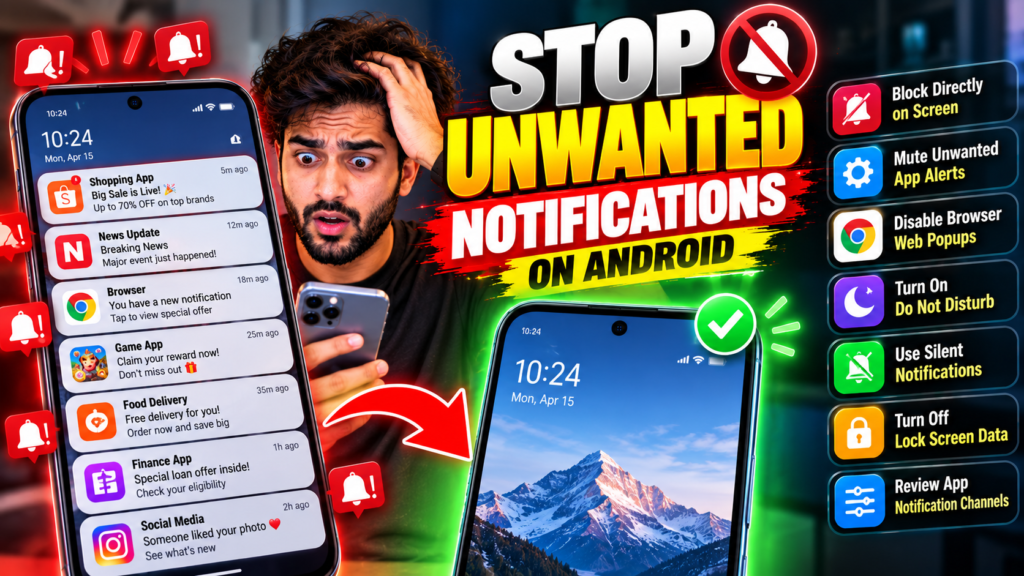
You unlock your phone screen to check an important message, but your display is covered with spam alerts. Shopping apps want you to buy items, news channels send breaking news alerts and web browsers show random popups. How can you stop unwanted notifications Android devices flood you with every single day? You are definitely not alone here. Constant buzzing is one of the most annoying problems phone owners deal with today. The good news is your device is not broken. Most of the time, simple app permissions, browser site alerts or push notification settings are causing the problem.
Here are 7 simple, proven fixes to block those annoying alerts and enjoy a quiet phone again.
Why Does Your Android Phone Get So Many Unwanted Notifications?
Before diving into the quick solutions, it helps to understand why your phone keeps buzzing constantly:
- Default App Permissions: Many newly installed apps turn on push alerts automatically without asking.
- Website Permission Popups: Web browsers allow sites to send desktop-style push alerts after one tap.
- Marketing Push Messages: Shopping and gaming apps use constant alerts to pull you back into the app.
- Notification Channels: Apps use different channels to send both useful alerts and promotional clutter.
Let’s step through the easiest ways to turn off these alerts right now.
7 Quick Fixes for Unwanted Android Notifications
+——————————————————————-+
| 7 Quick Fixes for Unwanted Android Alerts |
+——————————————————————-+
| 1. Block Directly on Screen -> Stop alerts directly from shade. |
| 2. Mute Unwanted App Alerts -> Silence specific app settings. |
| 3. Disable Browser Web Popups -> Block spam web page permissions. |
| 4. Turn On Do Not Disturb -> Silence all alerts during focus. |
| 5. Use Silent Notifications -> Receive alerts without buzzing. |
| 6. Turn Off Lock Screen Data -> Keep sensitive alerts private. |
| 7. Review App Notification -> Control channels one by one. |
+——————————————————————-+
1. Block Directly on Screen
When an annoying alert pops up on your screen, you do not need to open main settings. You can turn off alerts right from your top notification shade in two quick taps.
- Press and hold the annoying alert item.
- Select Turn Off Notifications option.
- Choose to mute or turn off that app.
- Tap Apply to save your new choice.
2. Mute Unwanted App Alerts
If a specific game or shopping app keeps bugging you with daily sales deals, you can easily turn off push permissions for that single application inside settings.
- Open Settings and choose Apps menu.
- Select the annoying app from list.
- Tap on Notifications category item.
- Toggle off Allow Notifications key.
3. Disable Browser Web Popups
Chrome and other mobile browsers often allow random websites to send promotional messages. Disabling site alerts stops bad sites from sending spam to your screen.
- Open Chrome and tap the three dots.
- Go to Settings then Site Settings.
- Select Notifications from main menu.
- Turn off Sites can ask to send key.
4. Turn On Do Not Disturb
When you want total peace while sleeping, working or driving, switch on Do Not Disturb mode. It stops all light popups, sound chimes and vibrations instantly.
- Swipe down your top quick settings shade.
- Tap Do Not Disturb icon button.
- Set custom start and end schedules.
- Allow key calls from chosen contacts.
5. Use Silent Notifications
If you still want to see updates from social apps but hate the constant loud buzzing sound, set those app updates to deliver silently without audio disturbance.
- Press and hold alert on your screen.
- Change option from Default to Silent.
- Save your settings for that app type.
- View updates later without annoying noise.
6. Turn Off Lock Screen Data
You can stop unwanted or private popups from displaying text details on your lock screen. This keeps your phone looking clean while keeping your messages safe.
- Open Settings and tap Notifications.
- Select Notifications on Lock Screen.
- Choose Hide Conversation Content mode.
- Keep your main lock screen quiet.
7. Review App Notification
Modern phones group alerts into notification channels. You can block marketing alerts while keeping important security and account updates active for each app.
- Open Settings and tap Apps section.
- Select any app with heavy alert logs.
- Tap Notification Categories options.
- Turn off unwanted promo channels only.
How to Check Which Apps Send the Most Alerts
Before turning off every setting, take a moment to find out which apps cause the most clutter:
- Open Settings on your phone.
- Tap Notifications.
- Tap App Notifications (or Most Recent view).
You will see a simple list organized by frequency:
- Browser Alerts: Web pages usually flood screens with heavy promotional alerts.
- Shopping & Food Apps: Delivery tools send frequent deal updates and reminders.
- Social Media Apps: Network platforms push constant likes, comments and tags.
- System Apps: Device security and utility apps send routine system status reports.
Frequently Asked Questions (FAQs)
Why do I get pop-up notifications from websites on my Android phone?
When visiting certain websites, you might accidentally tap “Allow” on permission popups. To remove these, open Google Chrome, go to Settings > Site Settings > Notifications and delete the permissions for any websites you do not trust.
Will turning off notifications miss important phone calls or messages?
No, it will not. You can selectively disable alerts for specific marketing apps while leaving phone calls, SMS text messages and messaging apps like WhatsApp completely active and set to ring normally.
How can I turn off all app notifications at once?
You can turn on Do Not Disturb mode from your quick settings panel to block all incoming alerts instantly. Alternatively, you can manage global alert permissions under Settings > Notifications to control all apps in one place.
Final Thoughts
It can be really frustrating when you want to stop unwanted notifications Android devices show all day long. But taking control of your phone display only takes a couple of minutes once you know where to look.
By customizing your app permissions, clearing web browser site popups and utilizing silent notification channels, you can reclaim your phone screen and enjoy a quiet, distraction-free device every day!